
11 Powerful, Easy Steps to Find your domain name On Hostinger (2026 Proven Guide)
If you’ve ever logged into Hostinger and thought, “Where is my domain?” you’re not alone. In 2026, the fastest way to Find your domain name On Hostinger is to first understand whether Hostinger is acting as your registrar (where you purchased the domain), your DNS provider (where your nameservers point), or only your hosting provider (where your website files live). Once you know that, locating the domain in hPanel becomes straightforward.
Why you might need to find your domain in Hostinger
Most people try to Find your domain name On Hostinger for one of these practical reasons: अधिक जानकारी के लिए Find your domain name 13 Powerful Best भी पढ़ें।
- Connecting a website: you bought hosting and now need to attach your domain to WordPress or another site.
- Checking DNS: you need to add an A record, CNAME, MX, or TXT record for email, verification, or CDN.
- Renewal and expiry: you want to confirm the domain’s expiration date and auto-renew settings.
- Troubleshooting: your site/email isn’t working and you need to verify nameservers and DNS zone configuration.
- Ownership/admin clarity: you manage multiple sites and want to see which account controls the domain.
The confusion usually happens because “domain” can appear in multiple places in Hostinger depending on how you purchased and configured it. अधिक जानकारी के लिए 12th Ke Bad Konsi Subject Le 12 Ultimate Best 12 Ultimate Best भी पढ़ें।
Before you start: know what kind of domain setup you have
To avoid clicking in circles, identify which of these scenarios matches you: अधिक जानकारी के लिए 12th Ke Bad Konsi Subject Le 12 Ultimate Best 12 Ultimate Best भी पढ़ें।
- You registered the domain on Hostinger: Hostinger is your domain registrar. You should see it under a Domains area with renewal and DNS options.
- You registered elsewhere but pointed nameservers to Hostinger: Hostinger is your DNS manager. You may manage DNS in Hostinger, even though renewal is still with the external registrar.
- You registered elsewhere and kept nameservers elsewhere: Hostinger is only hosting your website. Your domain might not show in a “Domains you own” list, but it can still be connected to your hosting plan as the site address.
Once you know the scenario, it becomes much easier to Find your domain name On Hostinger and take the right next step. अधिक जानकारी के लिए Terms and Service Page 9 Powerful Best भी पढ़ें।
Step-by-step: Find your domain name On Hostinger in hPanel
This section is the “do this first” path. Even if Hostinger updates layout slightly over time, the logic stays the same: start from hPanel and locate the domain from either Hosting or Domains. अधिक जानकारी के लिए Terms and Service Page 9 Powerful Best भी पढ़ें।
Step 1: Log in to your Hostinger account (hPanel)
Use the same email you used to purchase hosting or register the domain. If you have multiple Hostinger accounts (common with agencies), double-check you’re in the right one before assuming the domain is missing.
Step 2: Use search and filters (if available)
If you manage multiple websites/domains, use any search bar, filtering, or sorting by “active/expired” to quickly narrow down results. This is often the fastest way to Find your domain name On Hostinger when your dashboard is crowded.
Step 3: Decide where to look next
Ask one question: “Am I trying to find the domain for hosting (site connection) or for registrar/DNS (domain management)?”
- For website connection: go to the Hosting section.
- For renewals/DNS/ownership: go to the Domains section.
Find your domain name On Hostinger from the Hosting section
If your main goal is to connect a website, this is usually the right route—especially when you bought hosting first and domain later (or elsewhere).
Step 4: Open “Hosting” and select the correct plan
In hPanel, open your hosting product and choose the plan tied to your website. Many users have more than one plan (testing, staging, client sites), so pick carefully.
Step 5: Check the “website” or “domain” label inside the hosting plan
Inside the plan, you’ll typically see a primary website/domain label. This is a practical place to Find your domain name On Hostinger even if the domain itself is registered elsewhere. If you see a temporary domain, subdomain, or placeholder, it means the domain might not yet be attached.
Step 6: Verify what’s actually connected (site files vs domain)
Hosting can exist with or without a registered domain in the same account. To confirm you’re looking at the correct website, open the site management tools and confirm the website root, installed app (WordPress, etc.), or the domain mapped to that site.
Image opportunity: Screenshot-style image showing “Hosting plan → Website/Domain” label and where to click.
Find your domain name On Hostinger from the Domains section
If you need renewals, nameserver settings, or DNS control, the Domains area is where you should look first.
Step 7: Open “Domains” and view your domain list
This is the cleanest “Hostinger domain lookup” inside your account. If the domain was registered through Hostinger, it should appear here. If it doesn’t, it may be in a different account or registered elsewhere.
Step 8: Open the domain to access management tools
Click the domain name to open the management view. Typical options include:
- Nameservers: where the domain points
- DNS zone: where you add/edit records
- Renewal settings: expiry date and auto-renew
- Domain lock / transfer: security and ownership controls
Image opportunity: A clear “Domains list” screenshot mock with the target domain highlighted.
How to confirm if Hostinger is your registrar or just hosting DNS
This is the step that removes 90% of confusion. To reliably Find your domain name On Hostinger, you must separate these roles:
Check 1: Do you see renewal, transfer, and registrar-level controls?
If Hostinger shows renewal/expiry management and domain transfer features in your panel, it strongly suggests Hostinger is acting as registrar for that domain in your account.
Check 2: Verify with a WHOIS lookup (external confirmation)
If you need extra clarity (for example, a former developer registered the domain), use an ICANN WHOIS lookup to see registrar information and the authoritative nameservers. This confirms where the domain is registered, even if your hosting is somewhere else.
Key idea: you can host a website on Hostinger without Hostinger being your registrar. That’s why “domain not visible” can still be totally normal.
Where to check nameservers and DNS records
Once you can Find your domain name On Hostinger, the next practical task is usually DNS. In 2026, DNS is still the backbone of everything: websites, email, verification, and third-party services.
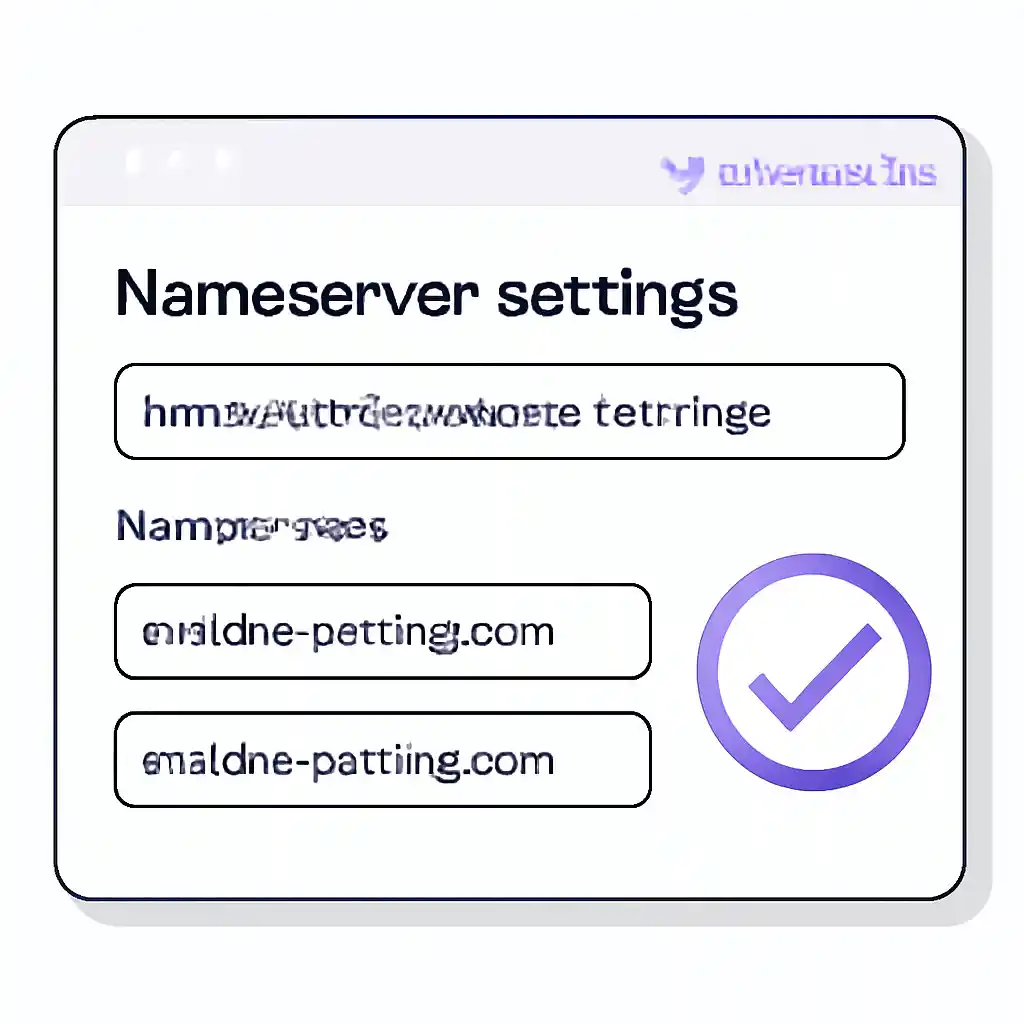
Nameservers: the big pointer
Nameservers decide which provider controls DNS. If nameservers point to Hostinger, you’ll manage DNS inside Hostinger. If not, you must manage DNS at the provider listed in your nameservers (often your registrar).
Image opportunity: Nameserver settings screen with a “copy nameservers” style highlight.
DNS Zone Editor: the record-level control
DNS records you’ll commonly touch:
- A record: points your domain to an IP address (common for websites)
- CNAME: points a subdomain to another hostname (common for www)
- MX: controls email routing
- TXT: verification (Google, Microsoft, Facebook), SPF/DKIM/DMARC for email
If you’re doing SEO or running business email, checking these records is not optional. Incorrect DNS can look like “hosting problems” even when hosting is fine.
Image opportunity: DNS zone editor with example rows (A, CNAME, MX, TXT) and no sensitive values.
How to find your domain renewal status, expiry, and auto-renew
Renewal is where mistakes become expensive. After you Find your domain name On Hostinger in the Domains area, check:
- Expiration date: note it in your calendar (and your team’s shared calendar if applicable).
- Auto-renew toggle: keep it on for important domains, especially money pages and branded domains.
- Payment method: ensure the saved card/wallet method is current.
If your domain is registered elsewhere, you won’t see Hostinger renewal controls; you’ll need to log in to your registrar to manage expiry and billing.
Find your domain name On Hostinger when it’s not showing: common fixes
If you can’t Find your domain name On Hostinger, don’t assume it’s deleted. In most cases, it’s one of these situations:
Fix 1: You’re in the wrong Hostinger account
It happens more often than people admit—especially if you used “Sign in with Google,” a work email, or your developer bought the plan from their email. Try your alternate emails and check which one has the invoice or welcome emails.
Fix 2: The domain is registered elsewhere (so it won’t appear under registered domains)
If you bought your domain from another registrar, you may not see it listed as a registered domain in Hostinger. That’s normal. You can still connect it to Hostinger hosting by pointing nameservers or updating A/CNAME records, depending on your setup.
Fix 3: Your domain is attached to hosting but not added to “Domains”
Sometimes you’ll see the domain inside a hosting plan (as the site address) but not as a managed/registered domain. This typically means Hostinger is hosting your website, but registrar-level management remains elsewhere.
Fix 4: You’re looking for a subdomain or addon domain
If you’re trying to locate something like blog.yourdomain.com, remember it may be created as a subdomain inside hosting tools, not shown as a separate registered domain product.
Fix 5: Propagation delay after changes
After updating nameservers or DNS, it can take time for changes to fully propagate. During this window, your website might partially work or work only on some networks. The best approach is to confirm settings are correct and wait, rather than repeatedly changing records.
Security & ownership: how to verify your domain and protect it
When you Find your domain name On Hostinger, spend two minutes to secure it properly. These checks protect you from hijacks and accidental loss:
Enable domain lock (if available)
Registrar lock helps prevent unauthorized transfers. If Hostinger is your registrar, you should be able to toggle this in domain settings.
Verify contact email and access
Make sure your domain contact email is one you control long-term. Avoid emails tied to ex-agencies, temporary staff, or soon-to-expire addresses.
Keep DNS changes controlled
If you run a business site, treat DNS like production infrastructure. Document what you change (record type, host, value, time) so you can roll back quickly if email or the website breaks.
Quick checklist
- Log in to the correct Hostinger account (check invoices if unsure).
- To Find your domain name On Hostinger for site connection, start from Hosting and open the relevant plan.
- To manage renewal/DNS, start from Domains and open the domain.
- Confirm whether Hostinger is your registrar or only hosting/DNS by checking renewal controls and WHOIS.
- Verify nameservers first, then DNS records (A/CNAME/MX/TXT).
- Check expiry date and auto-renew if Hostinger is the registrar.
Featured image opportunity: A “2026 checklist” themed hPanel dashboard illustration showing Hosting vs Domains pathways.
FAQs
Is there a difference between “domain connected to hosting” and “domain registered on Hostinger”?
Yes. A connected domain simply points to your hosting (via nameservers or DNS records). A registered domain means Hostinger is the registrar and you manage renewal/transfer there.
How to find domain name in Hostinger hPanel if I only remember the website?
Open your hosting plans and look for the primary domain/website label attached to each plan. This is often the quickest path when you don’t remember where the domain was registered.
Can I have multiple domains on one Hostinger hosting plan?
Depending on your hosting plan type, you may be able to add more websites/domains. In that case, check the plan’s website list and ensure each domain is mapped correctly with the right document root.
What should I do after I Find your domain name On Hostinger?
Confirm nameservers and DNS records first, then ensure your site is connected to the correct hosting plan, and finally enable SSL once DNS is pointing correctly.
संबंधित लेख
इस विषय पर और उपयोगी जानकारी के लिए ये लेख भी पढ़ें: